




Revisión de ¿Cómo eliminar Windows después de instalar Trisquel GNU/Linux en arranque dual? de Mié, 03/26/2025 - 03:09
La revisión le permite rastrear las diferencias que hay entre distintas versiones de una entrada.
Esta guía está diseñada principalmente para usuarios que tienen un arranque dual y ahora desean escapar completamente de Windows y utilizar puramente Trisquel GNU/Linux.
Prerequisites
- A Trisquel GNU/Linux LiveCD or GParted LiveCD.
- Basic knowledge on Disk Partitioning.
- Experience editing with a text editor such as gedit or nano.
Important!
Before you start fiddling with your partitions, you should make sure that you have ALL IMPORTANT data backed up, preferably on a secondary hard drive (internal or external), a USB flash drive, or a CD-R or DVD-R.
1. Boot the Disc.
Inserte el LiveCD en la unidad de CD/DVD y reinicie el ordenador. Cada ordenador es diferente, pero es posible que deba modificar la BIOS para que el sistema arranque desde la unidad de CD antes que desde el disco duro. Consulte la documentación del fabricante del ordenador para obtener más información.
2. Run GParted and Locate Windows.
On the Trisquel GNU/Linux LiveCD, go to Main Menu (Trisquel) -> System Settings -> GParted.
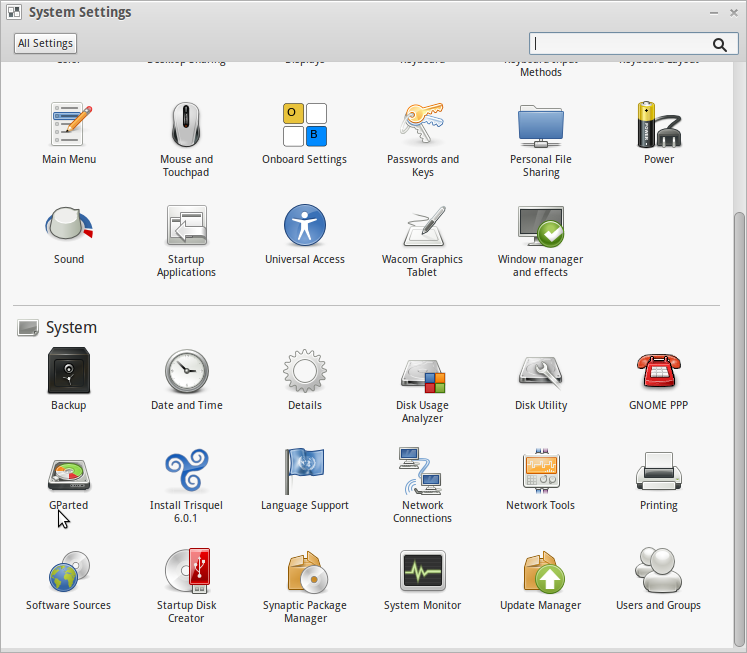
Si tiene más de un disco duro en su computadora, seleccione el dispositivo correcto en el menú desplegable de la esquina superior derecha de la ventana. Es probable que su partición de Windows esté formateada como NTFS y tenga un indicador de arranque, lo que facilita su localización.
3. Deleting the Windows Partition.
Select the correct partition, either from the bar graph representation of your disk, or from the list, and press the Delete button at the top with the trash can icon, or right-click the partition from the list and choose Delete.
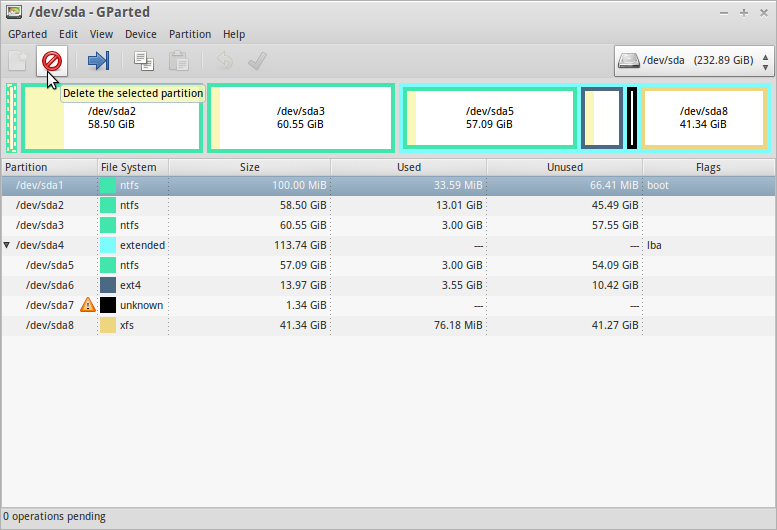
Note that a Windows installation might use more than one partition; for example, Windows preinstalled on an Acer desktop might have a "hidden" (but not to GParted) recovery partition, a partition named "SYSTEM RESERVED", and one named "eMachines". In this case, you'll have to select them all for deletion.
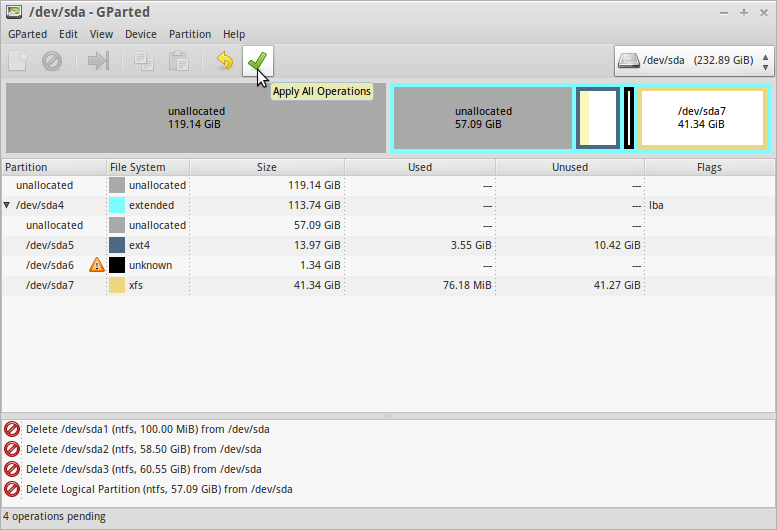
Now if you are sure that you want to proceed, click the Apply All Operations button to start the pending deletion operations.
4. Use the Newly Freed Space.
Tras completar la operación de eliminación, tendrá una sección de espacio sin asignar. Ahora, puede formatearla con el tipo de sistema de archivos que prefiera para usarla como partición de datos (o cualquier otra opción), o bien, puede redimensionar una partición adyacente para usar este espacio.
- Resizing an Existing Partition.
Right-click the partition that you want to expand into the empty space and select Resize/Move. You can use either the number sizing, or you can graphically drag the arrows on the visualization into the empty space (the numbers will adjust automatically). When you are finished, click the Resize/Move button, then Apply All Operations in the GParted window. The operation may take awhile, depending on the size of the partition, but DO NOT interrupt this process, or you risk losing everything on the partition you are resizing.
If your Trisquel GNU/Linux installation lives on the extended partition, you will not be able to expand the main Linux partition into the space created by deleting the Windows partition. One solution is to
- Create a new partition using the space left by the deleted primary partition. (see Creating a New Partition below.)
- If the new partition is smaller than the main Linux partition, resize the latter to fit the former. (But only if the latter is not so full that data would be lost.)
- Copy the data of the old partition to the new one. (Click on the old partition; Ctrl-C; click on the new partition; Ctrl-V; click Apply All Operations.) (Had it been possible, resizing the old partition would also have involved copying and would have taken just as long.)
- Reinstall GRUB2 to the new partition. (See Here.)
- Boot into the new partition (See Reboot below.) and make sure everything works as normal.
Once you're satisfied that this operation succeeded, use GParted again to delete the old partition and to create a new one in its place, or to expand the new main partition, or to just leave the unused disk space as it is, to be used later.
- Creating a New Partition.
If you choose to simply use the newly freed space as a new partition, select the unallocated space and click the New button (Or right-click and choose New). Choose which filesystem you want, then click Add, then Apply, and Apply again.
Since you are not using Windows on this system anymore, ext4 is probably the best choice for your new filesystem. If you plan on sharing this drive with Windows (maybe you have Windows on another drive on this computer), NTFS or FAT32 would be better choices.
5. Edit GRUB.
Al volver a la instalación, probablemente querrá eliminar Windows del menú de GRUB2. Con privilegios de root y su editor de texto o terminal preferido, abra /boot/grub/grub.cfg.
1. Using gedit.
gksudo gedit /boot/grub/grub.cfg
2. Using a terminal interface.
sudo nano /boot/grub/grub.cfg
Now scroll down into the file to where it says something similar to
### BEGIN /etc/grub.d/30_os-prober ###
menuentry 'Windows Recovery Environment (loader) (on /dev/sda3)' --class windows --class os $menuentry_id_option 'osprober-chain-E261-3734' {
        insmod part_gpt
        insmod fat
        set root='hd0,gpt3'
        if [ x$feature_platform_search_hint = xy ]; then
          search --no-floppy --fs-uuid --set=root --hint-bios=hd0,gpt3 --hint-efi=hd0,gpt3 --hint-baremetal=ahci0,gpt3  E261-3734
        else
          search --no-floppy --fs-uuid --set=root E261-3734
        fi
        drivemap -s (hd0) ${root}
        chainloader +1
}
menuentry 'Windows 8 (loader) (on /dev/sda5)' --class windows --class os $menuentry_id_option 'osprober-chain-40FA653EFA6530F8' {
        insmod part_gpt
        insmod ntfs
        set root='hd0,gpt5'
        if [ x$feature_platform_search_hint = xy ]; then
          search --no-floppy --fs-uuid --set=root --hint-bios=hd0,gpt5 --hint-efi=hd0,gpt5 --hint-baremetal=ahci0,gpt5  40FA653EFA6530F8
        else
          search --no-floppy --fs-uuid --set=root 40FA653EFA6530F8
        fi
        drivemap -s (hd0) ${root}
        chainloader +1
}
### END /etc/grub.d/30_os-prober ###
Puede colocar un # delante de cada línea para comentar estas entradas. Si prefiere eliminarlas, también puede hacerlo. Después de guardar y cerrar, estas entradas ya no estarán disponibles en el menú de GRUB.
6. Edit /etc/fstab.
If you made a data partition, you can have it automatically mount by adding the correct entry to fstab, which you can edit using root privileges.
1. Using gedit.
gksudo gedit /etc/fstab
2. Using a terminal interface.
sudo nano /etc/fstab
You may also need to change UUIDs in your fstab file if they changed (perhaps due to partition resizing). To see the UUIDs for your partitions, Open a terminal and enter:
sudo blkid
To mount your data partition automatically, assuming it is of type ext4, edit /etc/fstab as:
UUID=30fcb748-ad1e-4228-af2f-951e8e7b56df /media/data ext4 defaults 0 2
Replace 30fcb748-ad1e-4228-af2f-951e8e7b56df with corresponding UUID of the data partition obtained running sudo blkid and /media/data with your favourite mount point.
You may refer the manpages for more information on fstab. Open a terminal and enter:
man fstab
7. Reboot.
You can now reboot your system - go to Main Menu (Trisquel) -> Power Off -> Restart.
Don't forget to take out the LiveCD at the beginning of the boot sequence since you can't remove it while the disc is being used and you don't want to reload Trisquel GNU/Linux from it.
Happy Hacking!
© Contributors to the Ubuntu documentation wiki.
The material on this wikipage is released under the Creative Commons Attribution-ShareAlike 3.0 License.
