




Revisión de Connectarse a Internet de Dom, 03/30/2025 - 03:48
La revisión le permite rastrear las diferencias que hay entre distintas versiones de una entrada.
Suponiendo que haya una interfaz de red instalada y funcionando correctamente, puede utilizar uno de estos métodos para conectarse a Internet.
Using Network Manager
Click on the icon of the Network Manager at the right bottom of your desktop. Depending if you are already using a connection, this icon will look different. The icon is displaying the status of your current connection.
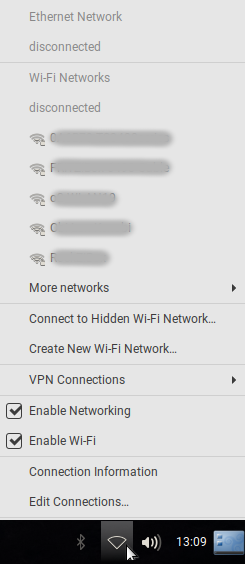
If you click on the icon for the Network Manager, a screen will pop up, which will show available connections. Click on More networks to show a list of more available connections.
- Clicking on a available Wi-Fi network will bring you to a screen similar like this:
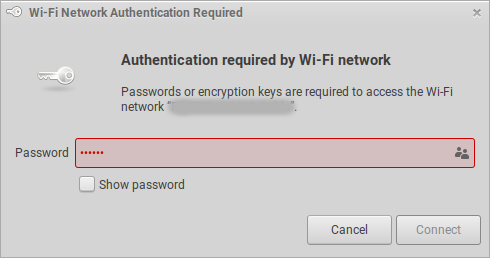
Type the password or encryption key or access toe Wi-Fi network and select Connect to use this Wi-Fi connection.
- If you want to use an Ethernet connection instead, just activate Enable Networking.
Advanced Network Configuration/ Editing connections
For advanced network configuration/ editing connections click on the icon of the Network Manager as shown on the first screenshot and select Edit Connections...
This tool is also accessible in the Main Menu:
- In the Main Menu go to System→Preferences→Internet and Network→Advanced Network Configuration
or by running the following command in a terminal:
nm-connection-editor

Here all configured connections are listed along with the time of their last usage.
Use the icons at the bottom to Add a new connection, Delete the selected connection or Edit the selected connection
Add a new connection
By selecting + to add a new connection the following window will appear: 
This lets you Choose a Connection Type.
The following types of connection are available:
Connection Types
- Hardware
- Bluetooth
- DSL/PPPoE
- Ethernet
- InfiniBand
- Mobile Broadband
- Wi-Fi
- Virtual
- Bond
- Bridge
- IP tunnel
- MACsec
- Team
- VLAN
- WireGuard
- VPN
- OpenVPN
- Point-to-Point Tunneling Protocol (PPTP)
- SSH
- Import a saved VPN configuration...
Make a selection to add a specific connection and follow the next instructions!
