




Revisión de Configurar un Modem 3G de Lun, 07/07/2025 - 11:33
La revisión le permite rastrear las diferencias que hay entre distintas versiones de una entrada.
Vista general
Las conexiones de banda ancha móvil utilizan el protocolo punto a punto (ppp) para conectarse a su ISP. Sin embargo, no existe un estándar real sobre cómo los proveedores de servicios de Internet (ISP) ofrecen estos servicios y puede ser problemático obtener una conexión inmediatamente después de elegir uno de los métodos actualmente disponibles para GNU/Linux. Esto se debe en parte a todo el nombre de usuario, contraseña, símbolo del sistema y opciones de menú que su ISP puede o no necesitar, así como a la secuencia de estas solicitudes.
Por último, se recomienda tener cerca el contacto de soporte técnico de su ISP, ya que lo más probable es que hayan pasado por esto o puedan darle algunos consejos.
Notas de inicio
Lo siguiente se probó en una máquina Trisquel 7.0 Mini. No debería ser diferente a la versión estándar de Trisquel 7.0, ya que el software que se utilizará es el mismo.
Parte del software de GNU/Linux no está construido para soportar las indicaciones del Número de Identificación Personal (PIN) y debe eliminarlo de antemano. En particular, este es el caso de WvDial. NetworkManager le permite introducir un PIN. Puede eliminar el PIN con un teléfono móvil o poniéndose en contacto con su proveedor de servicios de Internet.
Algunos módems tienen un modo de almacenamiento flash USB y el modo de módem, y con algunos de esos dispositivos deberá cambiar al modo de módem manualmente. Esto se puede lograr expulsando el punto de montaje de almacenamiento USB o cambiando entre modos usando usb-modeswitch, que ya podría estar instalado en su sistema. Se supone que este software funciona "automágicamente", lo que no implica la intervención del usuario.
Son métodos de interfaz gráfica de usuario y herramientas de línea de comandos para configurar su conexión. Actualmente, NetworkManager (GUI) parece proporcionar la configuración más fácil con la menor cantidad de intervención del usuario y se incluye con la ISO predeterminada de Trisquel 7.0.
Detalles de configuración de conexión Bases de datos
Si está utilizando una herramienta de línea de comandos, es muy probable que necesite más información de la que WvDial puede recopilar, por ejemplo. Para obtener esta información, puede ponerse en contacto con su proveedor de servicios de Internet o buscarla en bases de datos en línea. Este artículo de referencia enumera los detalles de algunos ISP.
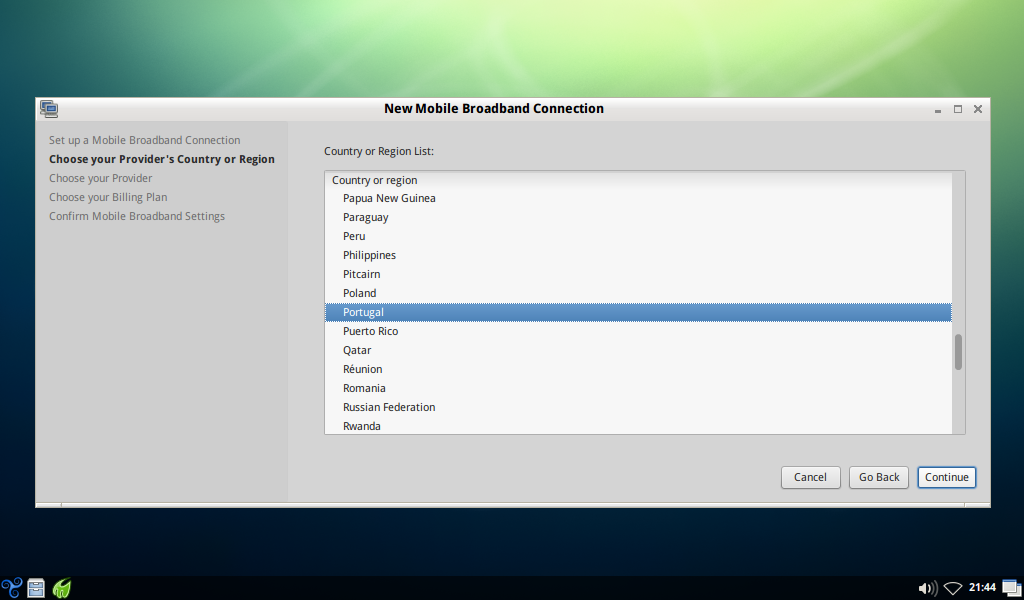
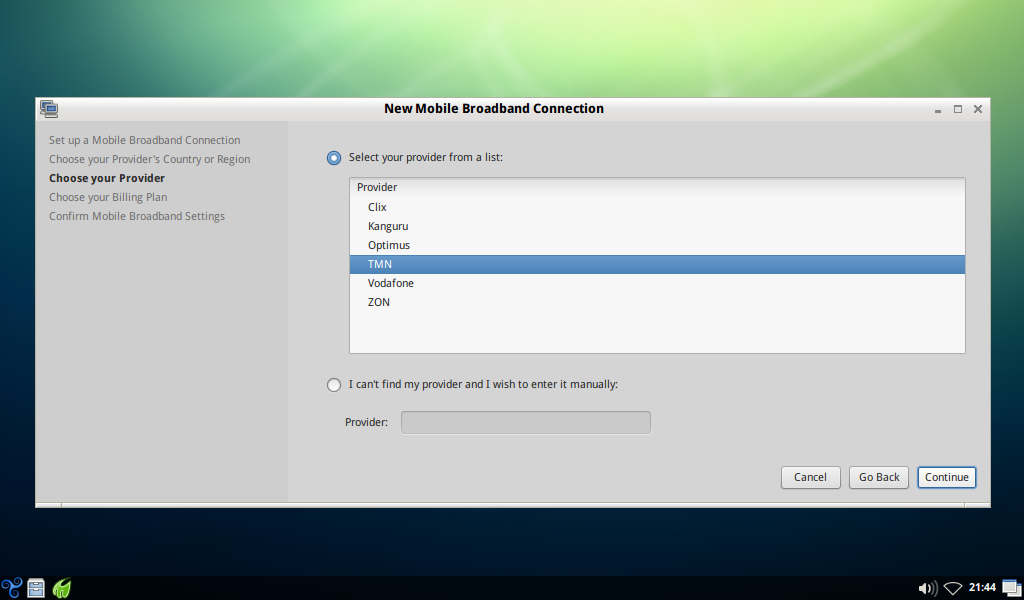
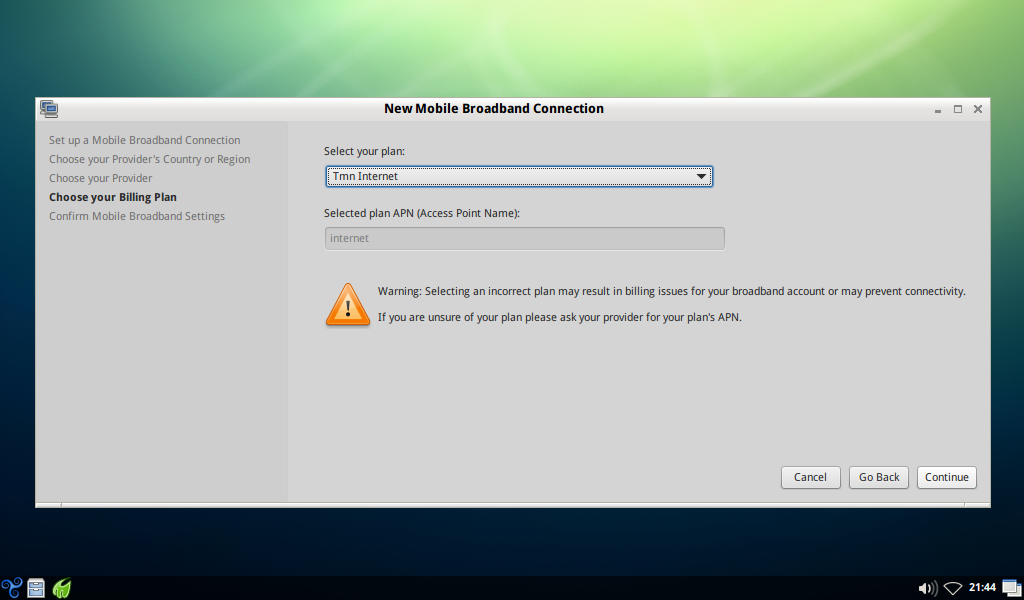
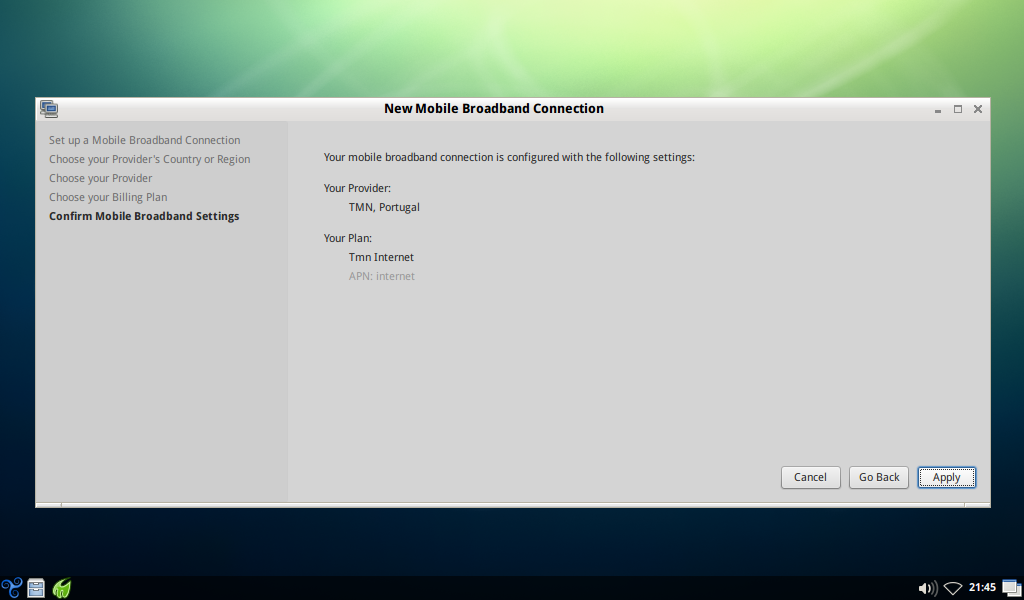
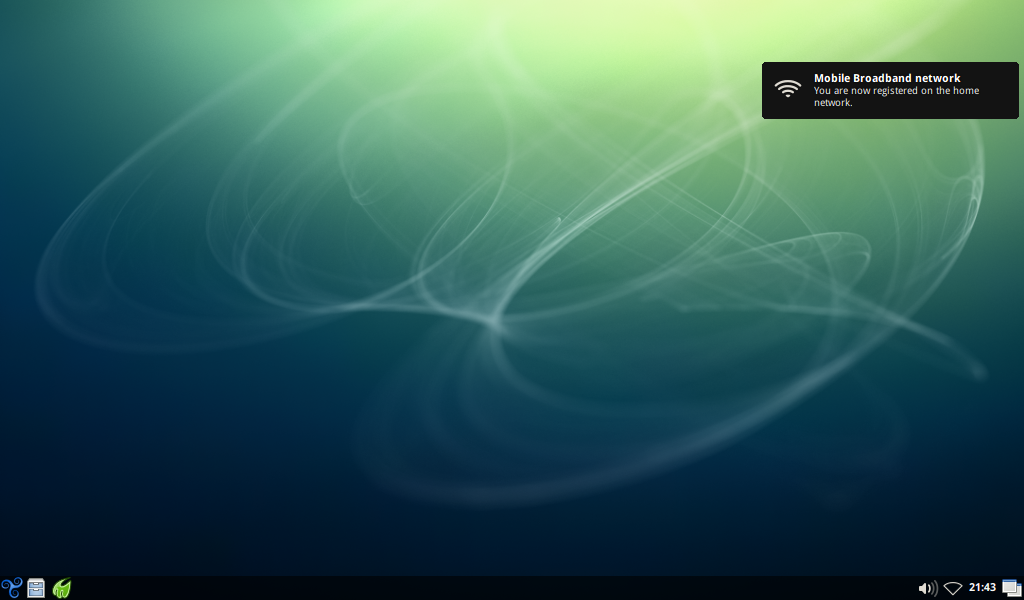
NetworkManager Setup
Here is an example configuration for the default GUI internet manager.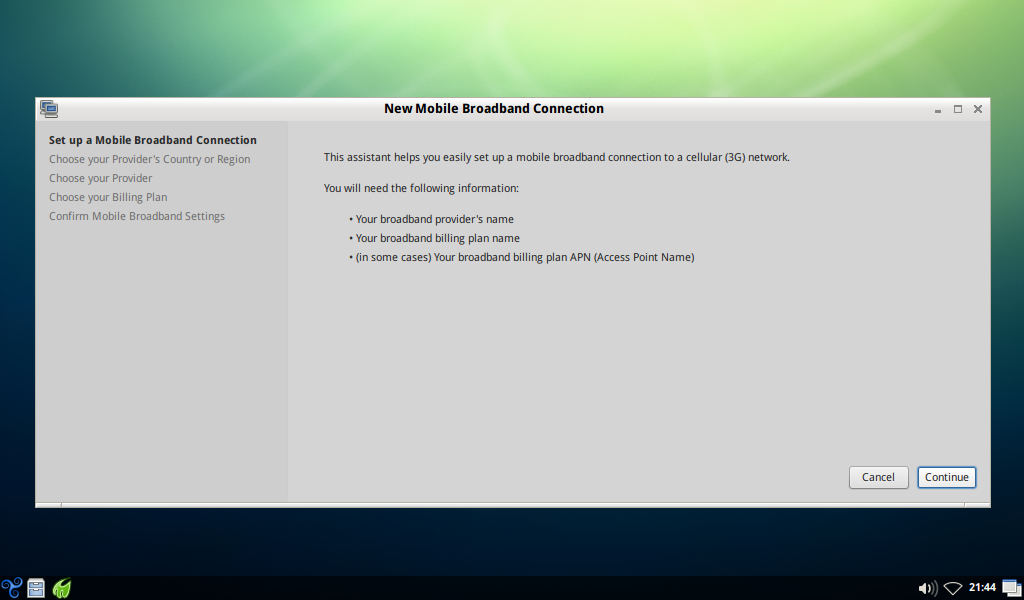

Wvdial Overview
“WvDial (pronounced 'weave-dial' [1]) is a utility that helps in making modem-based connections to the Internet that is included in some important Linux distributions.[2] WvDial is a Point-to-Point Protocol dialer: it dials a modem and starts pppd in order to connect to the Internet. When WvDial starts, it first loads its configuration from /etc/wvdial.conf and ~/.wvdialrc, which contain basic information about the modem port, speed, and init string, along with information about your ISP, such as the phone number, your user name, and your password.[3] Then it initializes your modem (strings are sent to the modem) and dials the server and waits for a connection (a CONNECT string from the modem). Any time after connecting, WvDial will start PPP if it sees a PPP sequence from the server or, alternatively, tries to start PPP. If all of this fails, WvDial just runs pppd and hopes for the best.[3] The connection started with WvDial can be dropped by switching back to the terminal from where it was started and pressing Ctrl-C.” - WvDial on Wikipedia.Wvdial Setup
You can generate a new configuration file with:wvdial /etc/wvdial.conf After this you need to edit the file with root privileges and uncomment the lines that start with a semicolon. Even if your connection does not need a username and password field, you will need to uncomment those lines and put something random in there. For the dialling number, you will have to look elsewhere.If you have configured wvdial, you can connect by using the following command as root or with sudo: wvdial This command also gives you some connection debugging information.
Wvdial Frontends
On the Wikipedia article linked above you can find some of the GUI frontends available for wvdial.Example Commandline Configuration
Note: This is a very specific configuration example and should be followed with caution.
I will show two methods I've learned of how to do it.
This was tested in Trisquel GNU/Linux Dwyn.
Minimum Requirements
Kernel: linux 2.6.29* or above
You can download recent kernel DEB packages from aligunduz.org, which has 100% FOSS kernel DEBs available: http://aligunduz.org/gNewSense I tested only with the 2.6.30.7 version
You must install in that order:
- linux-headers-2.6*.deb
- linux-headers-2.6*.deb
xplc Usually, already included in Trisquel.
wvstreams Usually, already included in Trisquel.
uniconf Usually, already included in Trisquel.
wvdial Usually, already included in Trisquel.
ppp Usually, already included in Trisquel.
--
- Install the packages mentioned above, as metioned above.
- Restart your computer.
- Insert the modem.
- Wait until the modem automounts in your Desktop.
--
Open a Terminal and type:
eject /media/ZTEMODEM
--
Wait 15-20 seconds so the modem can switch from Storage to Modem mode.
--
ls /dev/ttyUSB*
If it is recognized, proceed.
--
sudo su
--
wvdialconf /etc/wvdial.conf
--
gedit /etc/wvdial.conf
--
Copy and paste this:
[Dialer Defaults] Init1 = ATZ Init2 = ATQ0 V1 E1 S0=0 &C1 &D2 +FCLASS=0 Modem Type = Analog Modem ISDN = 0 New PPPD = yes Phone = *99# Modem = /dev/ttyUSB2 Username = *insert your ISP username here* Stupid Mode = 1 Password = *insert your ISP password here* Baud = 921600
--
Your ISP DNSs may or may not download automatically during the first connection attempt. In any case, if you know what DNSs your ISP uses, put it on the resolve.conf fife as described below.
gedit /etc/ppp/resolv.conf
--
Copy and paste this:
nameserver *insert your ISP DNS here* nameserver *insert your ISP secondary DNS here*
--
wvdial
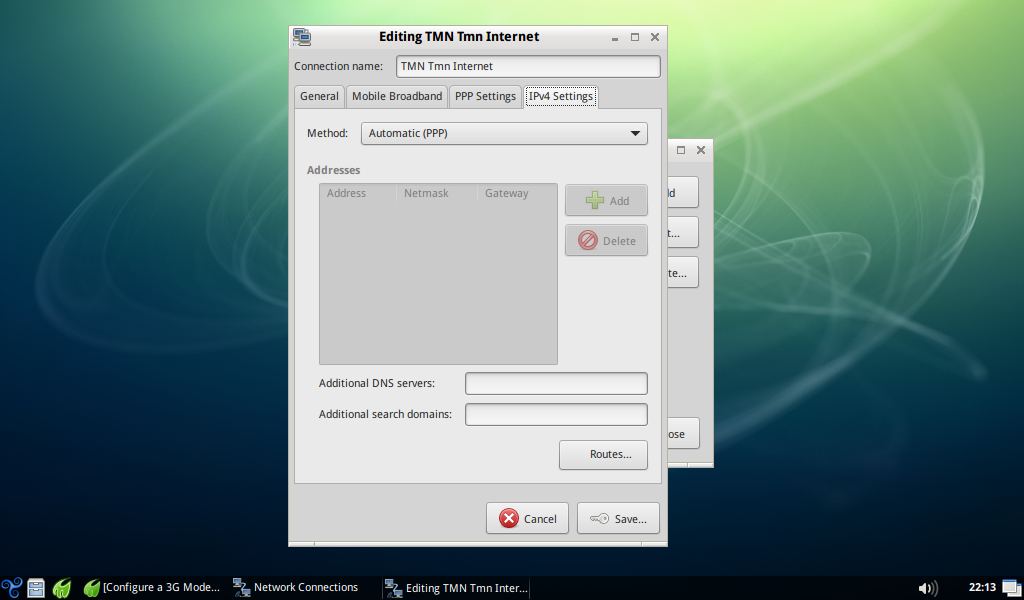
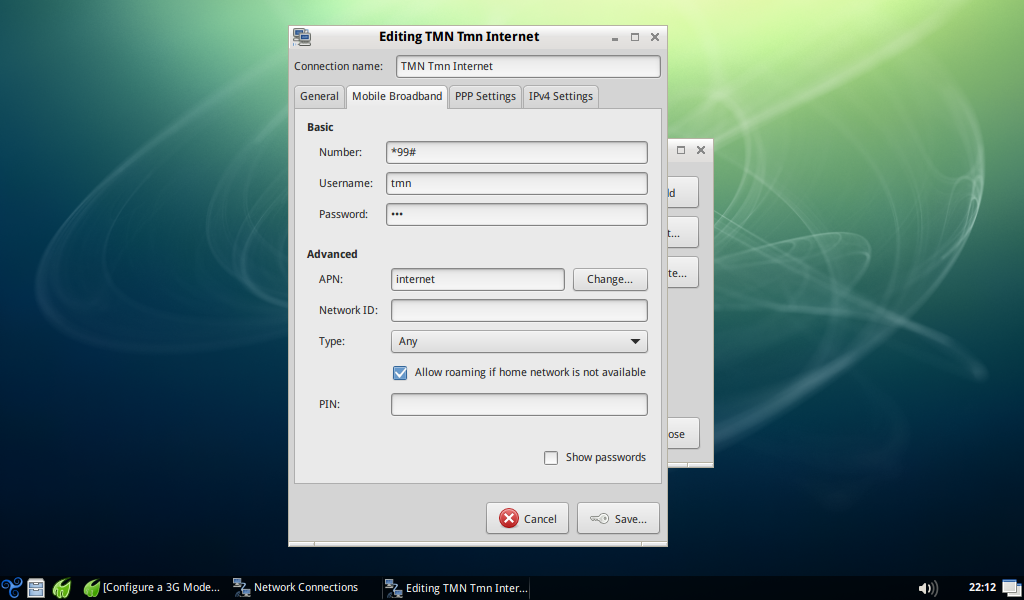
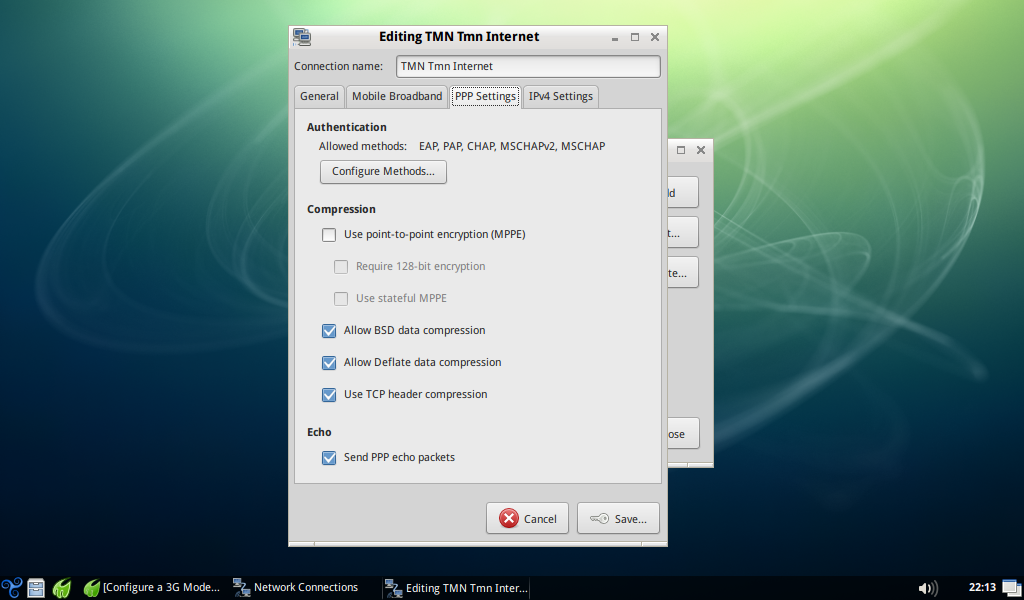
Default NetworkManager Connection Details
Note: These are here for reference.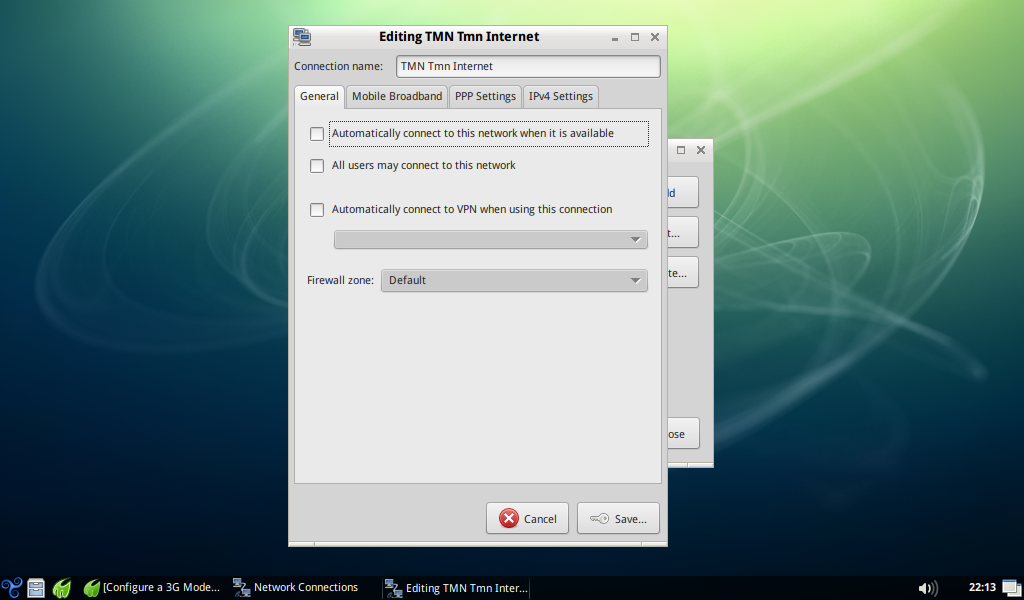
Other References
- /usr/share/doc/wvdial/README.gz - the built-in documentation is very clear and should be read before configuring wvdial.
- man wvdial
- See this for the above configuration example.
Troubleshooting
No NetworkManager icon for mobile broadband connections
(Tested on Trisquel Mini 7.0);Run: pkill nm-applet strace -e trace=open nm-applet After running this connect to a mobile broadband network and it will should show you the calls that are being executed to the system. In my case it tried to open “/usr/share/icons/trisquel/status/24/nm-wwan-tower.svg” among other files in this directory depending on the protocol that is being used to connect to the ISP servers.
The quick fix for this is to backup the files listed from strace and browse the directory for an icon you would like as a replacement and then copy it to the icons that are being called by the applet.
Browsing the nm-wwan-tower.svg file with gpicview shows no output, but it does work on other files within the same directory.
The file command does identify the nm-wwan-tower.svg as a SVG image.
TODO
- Troubleshooting;
- Connection examples;


